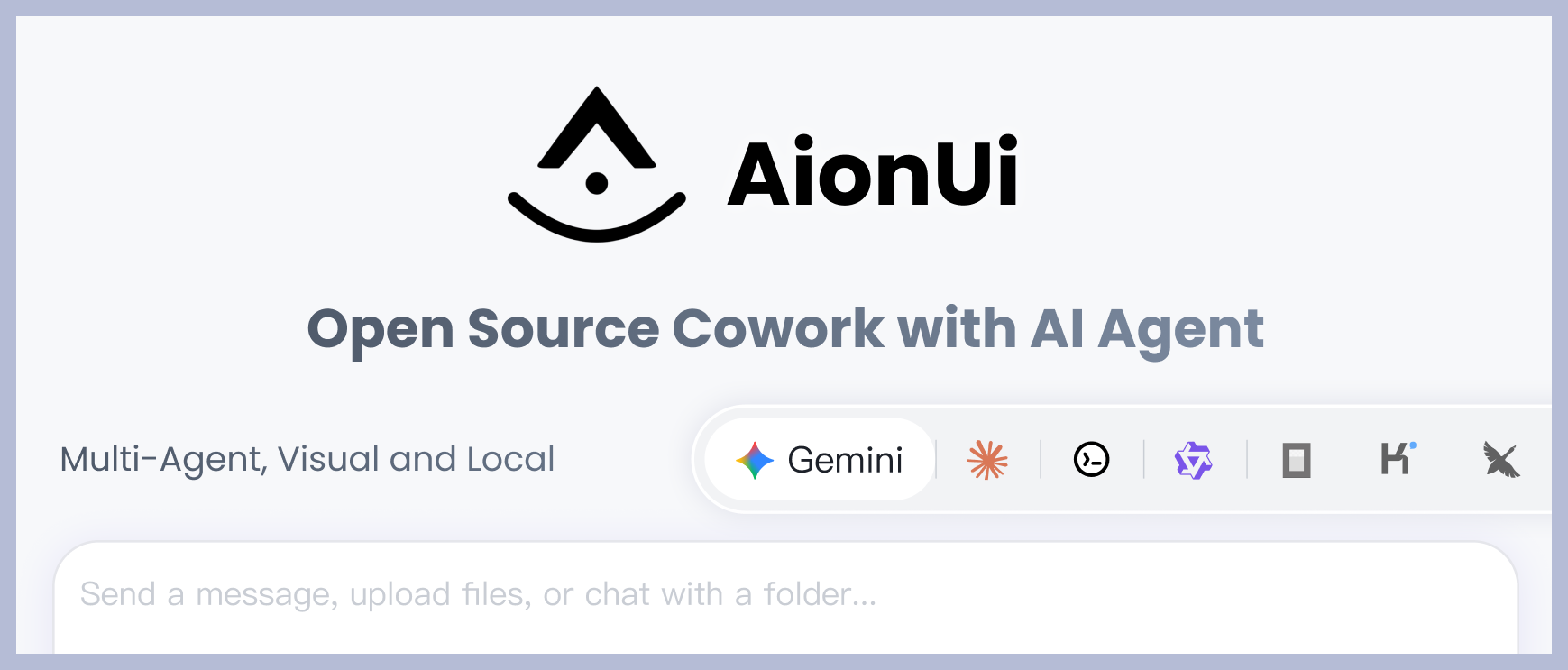
🚀 AionUi is a free, local, open-source cowork tool that supports Gemini CLI, Claude Code, Codex, OpenCode, Qwen Code, Goose CLI, Auggie, and more. It provides a full GUI plus WebUI remote access and works well as an open-source alternative for multi-agent workflows.
- Official website: https://www.aionui.com
- GitHub repository: https://github.com/iOfficeAI/AionUi
- Downloads: https://github.com/iOfficeAI/AionUi/releases
Core features
💬 Multi-session chat
- Multiple sessions with independent context — You can keep several chats open at the same time, and each session keeps its own context memory.
- Local storage — All conversation data is stored locally in SQLite, so history is not lost.
🤖 Multi-model support
- Broad provider support — Works with Gemini, OpenAI, Claude, Qwen, and other mainstream model providers.
- Local model support — Also supports local deployments such as Ollama and LM Studio.
🤝 Multi-agent mode
- Run multiple agents at once — You can operate Gemini CLI, Claude Code, Codex, OpenCode, Qwen Code, Goose CLI, Auggie, and more at the same time.
- Unified MCP management — Manage all agents through Model Context Protocol (MCP) from one place.
- Skills configuration — Assign dedicated skills to different agents.
- Custom assistants — Build personalized AI workflows with custom assistant settings.
- Independent configuration — Each agent can be configured separately without interfering with others.
- Flexible switching — Move between agents as different tasks require.
🗂️ File management
- File tree + drag-and-drop upload — Browse files like a folder tree and import files or folders with drag and drop.
- Smart organization — Let AI help organize folders automatically.
📄 Preview panel
- Preview 9+ file formats — Supports PDF, Word, Excel, PPT, code, Markdown, images, and more.
- Live tracking + editable — Tracks file changes automatically and lets you edit or debug Markdown, code, and HTML in real time.
🎨 AI image generation and editing
- Image generation — Supports models such as Gemini 2.5 Flash Image Preview, Nano, Banana, and more.
- Image understanding and editing — Includes AI-driven image analysis and editing features.
🌐 Multi-channel access
- Remote WebUI access — Reach the workspace from browsers on other devices, including mobile devices.
- Telegram integration — Interact through Telegram bots.
- Feishu integration — Access and interact through Feishu.
- Local data safety — All data stays in local SQLite storage, which also works well for server deployment.
Connect Dli.li AI
Required fields
Provider type: the provider label supported by the app, usually NewAPI
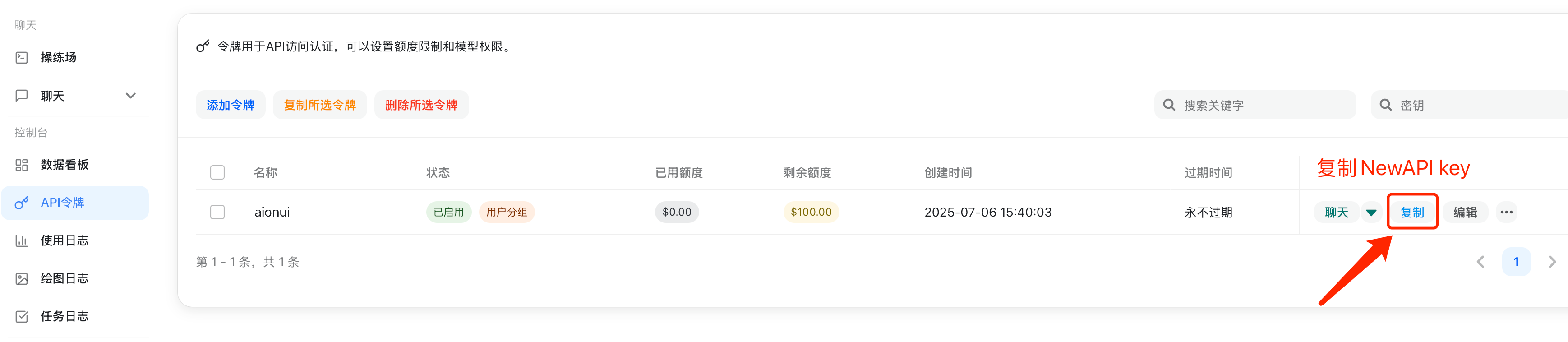
API key: copy it from the Dli.li AI console
API address: official default API https://api.dli.li/v1; official backup API https://api.dlizz.com/v1
Setup steps
Copy the API key from the Dli.li AI console
Open AionUi settings
- Open the settings page in AionUi
- Find the model configuration tab
- Click
Add Model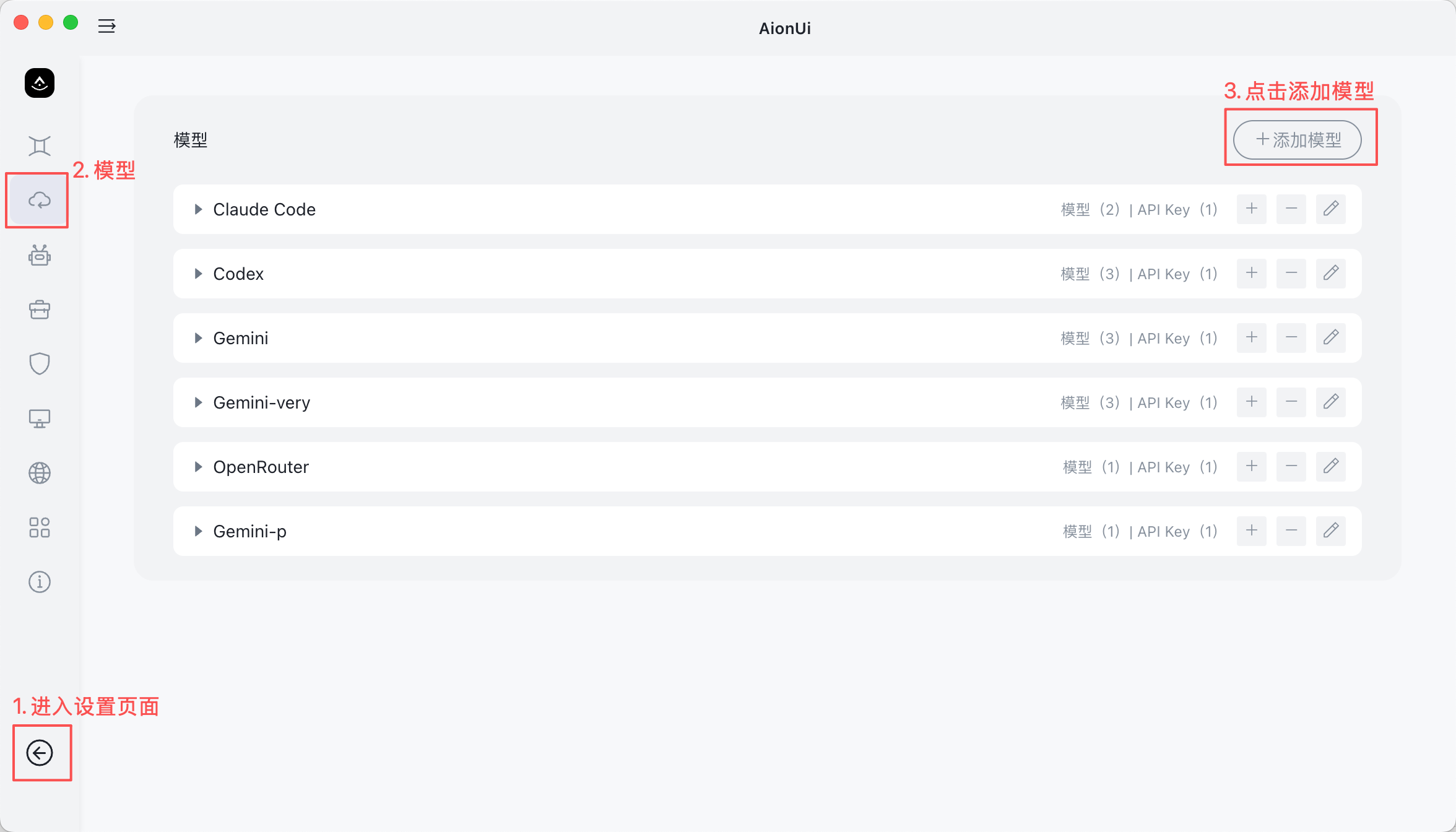
Add a new provider
- Click
Add Model - Choose
NewAPI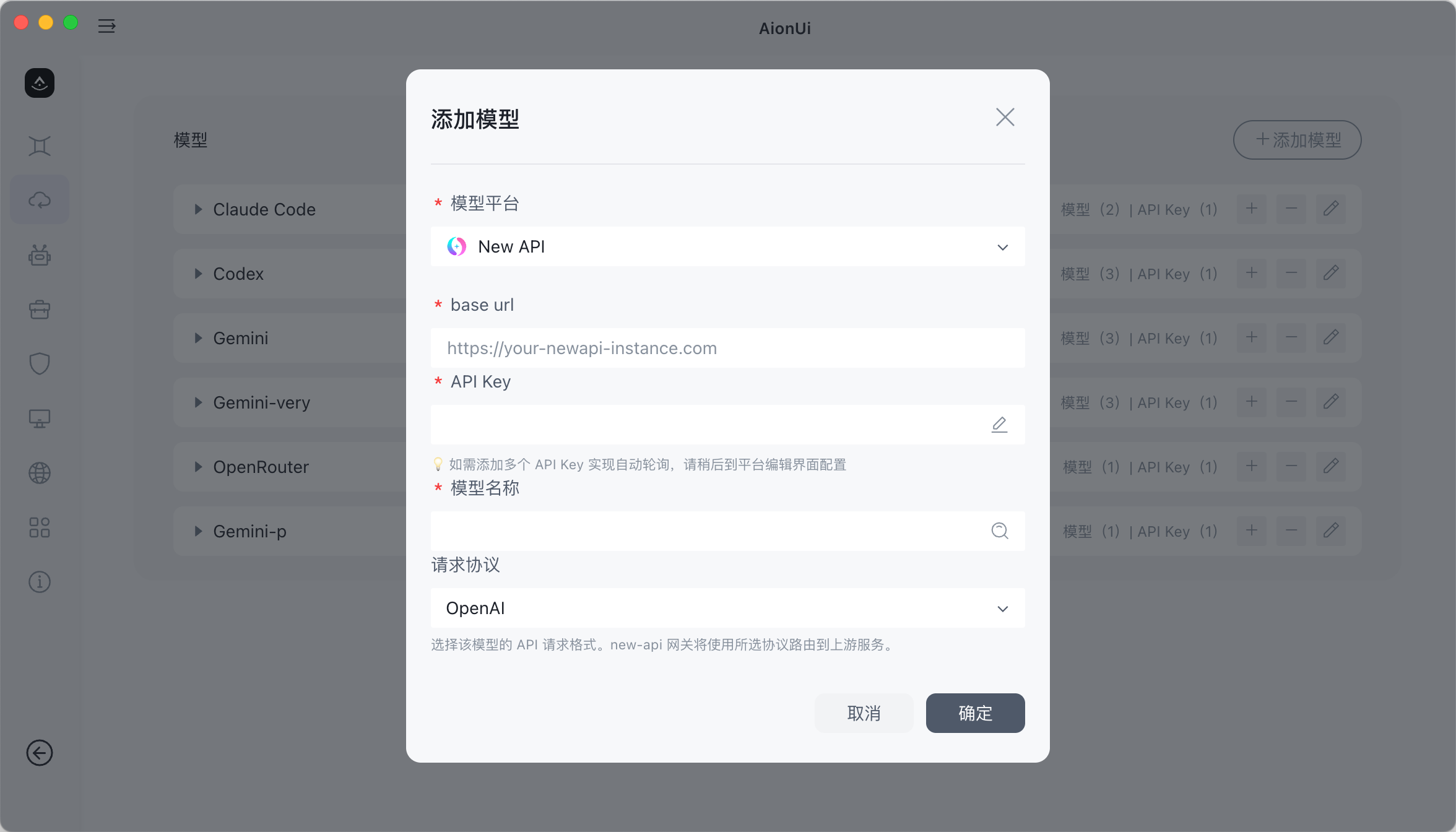
- Click
Configure the API information
- API Address: enter the Dli.li AI endpoint; the official default API is
https://api.dli.li/v1, and the official backup API ishttps://api.dlizz.com/v1 - API Key: paste the key copied from the Dli.li AI console
- API Address: enter the Dli.li AI endpoint; the official default API is
Add models
- Select the model you want from the dropdown
- The model name should match the exact model name exposed on this site
- Choose the appropriate request protocol
Start using it
- Return to the chat page
- Choose the configured model and start chatting